
Quick Start
This guide shows the simplest path through the workspace: https://antidrain.me/workspace.
If this is your first time, read Before You Start first: it covers creating the recipient wallet, finding the network, and getting the gas coin. On top of gas, the site takes 20% of the rescued amount on token and native withdrawals, and some actions are charged at $5 per unit; see Service Fees.
If this is your first web3 rescue, keep three addresses in mind:
- wallet at risk — where the assets are now;
- recipient — the new safe wallet where assets should arrive;
- donor — the temporary wallet that pays gas.
Do Not Fund the Donor Early
First reach the Fund Donor calculation. That is where the site shows the needed amount. Then fund only that amount.
1. Open Workspace
Go to:
/workspaceMake sure the correct network is selected. If you need another network, use the network selector at the top of the site.

The first step's panel looks like this, with the fields still empty:
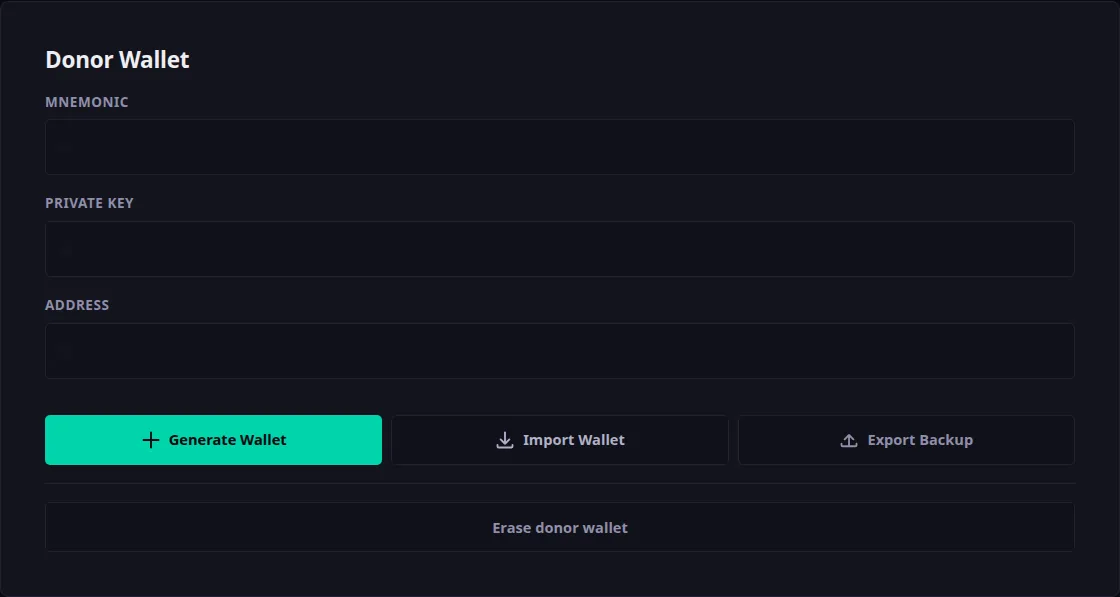
Network checking is mandatory. If tokens are on one network and the site is set to another, that transaction will not rescue those tokens.
2. Create or Import a Donor Wallet
The donor wallet pays gas and sends the prepared rescue transaction.
You can:
- Create a new donor wallet
- Import an existing donor wallet
After creating a donor, save the backup. Without a backup, you may lose access to the donor. Until the backup is exported, the action step stays locked.
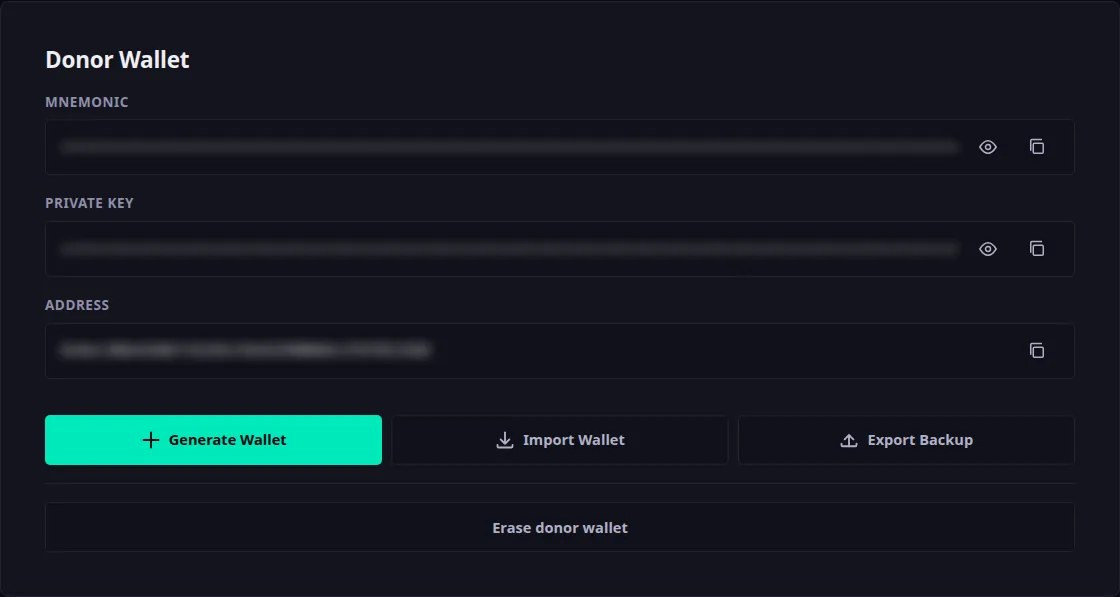
The donor should not be your main wallet. It is better to create a new one and keep only the amount needed for the current operation.
3. Choose an Action
Choose one action:
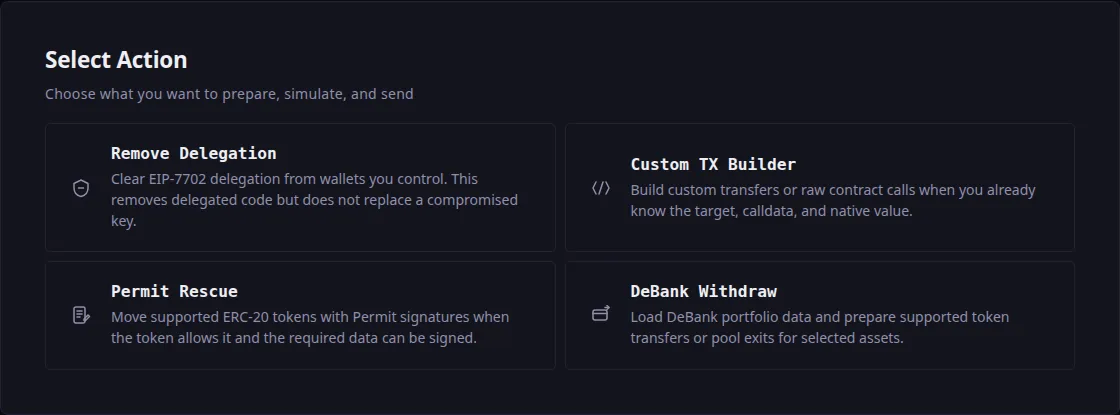
- Remove Delegation
- Custom TX Builder
- Permit Rescue
- DeBank Withdraw
If you are not sure what to choose, start with Rescue Actions.
A simple guide:
- Need to remove EIP-7702 delegation: Remove Delegation
- Need to manually move ERC-20 tokens or NFTs: Custom TX Builder
- The token supports Permit: Permit Rescue
- Assets are visible through DeBank and supported by the site: DeBank Withdraw
4. Fill In the Data
Add wallets, tokens, recipients, or other data required by the selected action.
Check addresses carefully. A wrong recipient address can send funds to the wrong wallet.
If a field asks for a private key, paste only the key required for the selected action. Do not paste the donor private key into rescue-wallet fields.
5. Build the Transaction
Click the build button. The site prepares the payload and moves you to the next step.
If the button is disabled, read the message or tooltip near the button.
A disabled button usually means the site is protecting you from incomplete data: missing recipient, invalid address, RPC not loaded, no selected token, or a pending check.
6. Run Simulation
Simulation checks the flow before broadcast.
If simulation shows an error, do not send the transaction until you understand the reason.
A successful simulation does not guarantee recovery, but a failed simulation almost always means you should stop and investigate.
7. Fund the Donor
The site shows how much funding the donor needs.
Fund only the amount needed for this flow. Do not keep large balances on the donor without a reason.
The native coin for gas depends on the network: ETH on Ethereum/Base/Arbitrum, BNB on BNB Chain, MATIC on Polygon, and so on.
8. Send the Transaction
Before sending, check again:
- Selected network
- Donor address
- Recipient address
- Action type
- Amount
- Simulation result
After sending, wait for the logs and result state.
Save the tx hash. If the UI closes or the RPC is delayed, the tx hash helps you check the real transaction state in an explorer.
Next
- Rescue Actions — how the four actions differ.
- Simulation, Funding, and Sending — steps 6 to 8 in detail.
- Troubleshooting — if something did not work.